Context Layer Setup
[TOC]
You can use the AI Context Layer from Claude Desktop or from OpenCode. Both let you ask business questions in plain language and get answers built on governed GitLab data. Claude Desktop is the simplest option for most team members. OpenCode suits team members who already work in the terminal and the analytics repository. If you use Claude Code, query Snowflake through the Snowflake CLI as described in Agent Setup.
Prerequisites
- A Snowflake account. Request Snowflake access through Lumos.
- The right role. Apply for Analyst, or Analyst Safe if you need access to material non public information. Do not choose a custom user, because that delays the request.
- Designated insider status, for Analyst Safe. With Analyst Safe you become a designated insider. See SAFE data for what that means.
Claude Desktop setup
Step 1: Install or update Claude Desktop
- Download or update the Claude Desktop app.
- Sign in with your GitLab email address through SSO.
- Confirm you are on the latest version.
Note: This step is critical. Older Claude Desktop versions fail to complete the Snowflake SSO login. If you already have Claude Desktop, update it before you continue.
You can also use the skill from the web at claude.ai, but the desktop app gives the best experience.
Step 2: Connect the Snowflake connector
-
Open Claude Desktop and select Cowork, then Customize.

-
Select Connectors and search for Snowflake. Choose the Snowflake connector with type Web, then select Connect.

-
Log in through Okta SSO when prompted.
-
Confirm the connector shows as Connected. Claude can now run queries.

Note: The Okta login is tied to your Okta and Snowflake session length. When your session expires, Claude prompts you to log in again, so expect to see the Okta window regularly.
Step 3: Enable the ETA, Enterprise Data plugin
-
In Cowork, open Customize and select Plugins.
-
Find the ETA, Enterprise Data plugin in the list (its label in the app is ETA - Enterprise Data) and open it.

-
Turn the plugin on with the toggle.
-
Confirm that
/snowflake-query-guidanceis listed under Skills.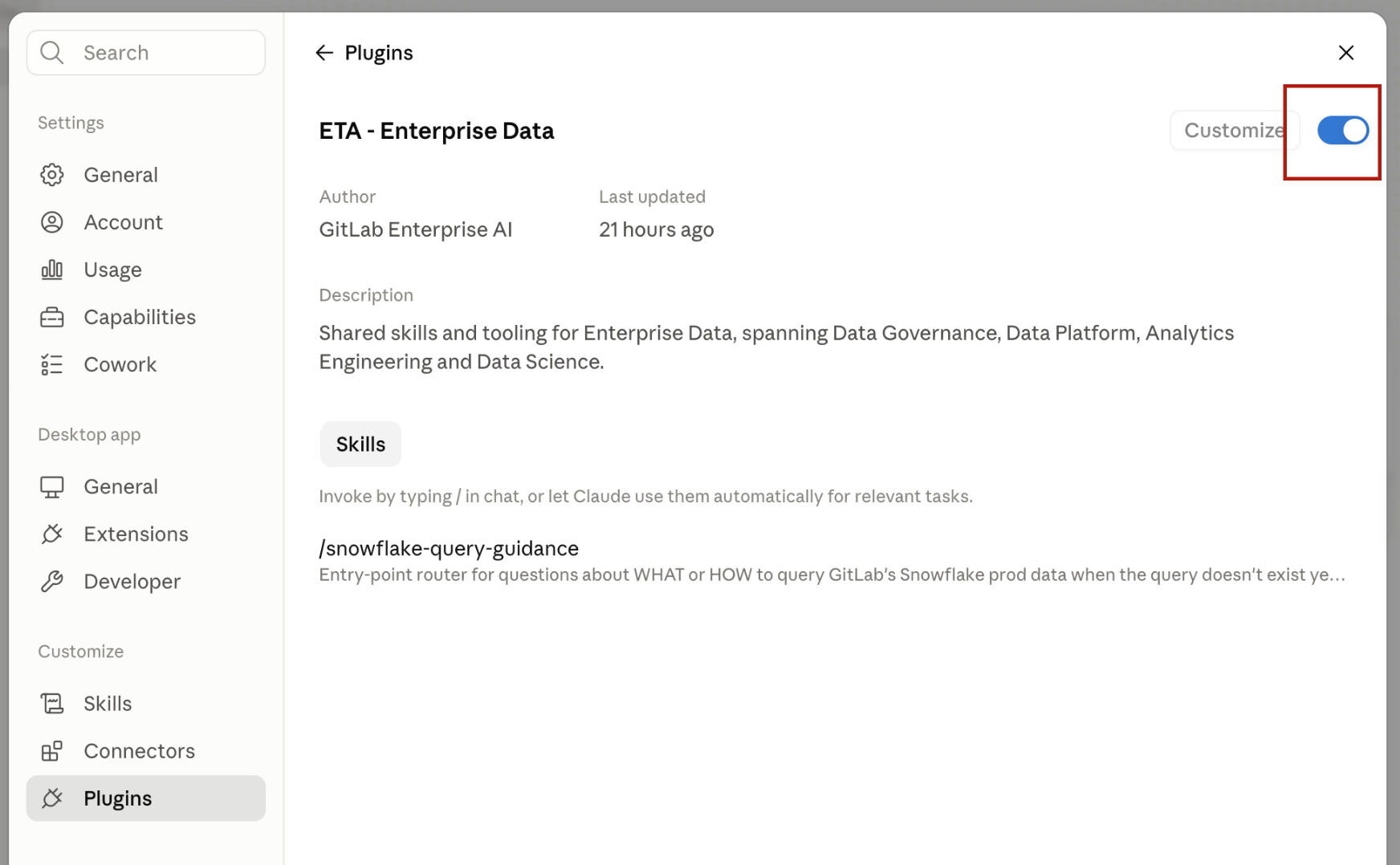
Step 4: Ask a question
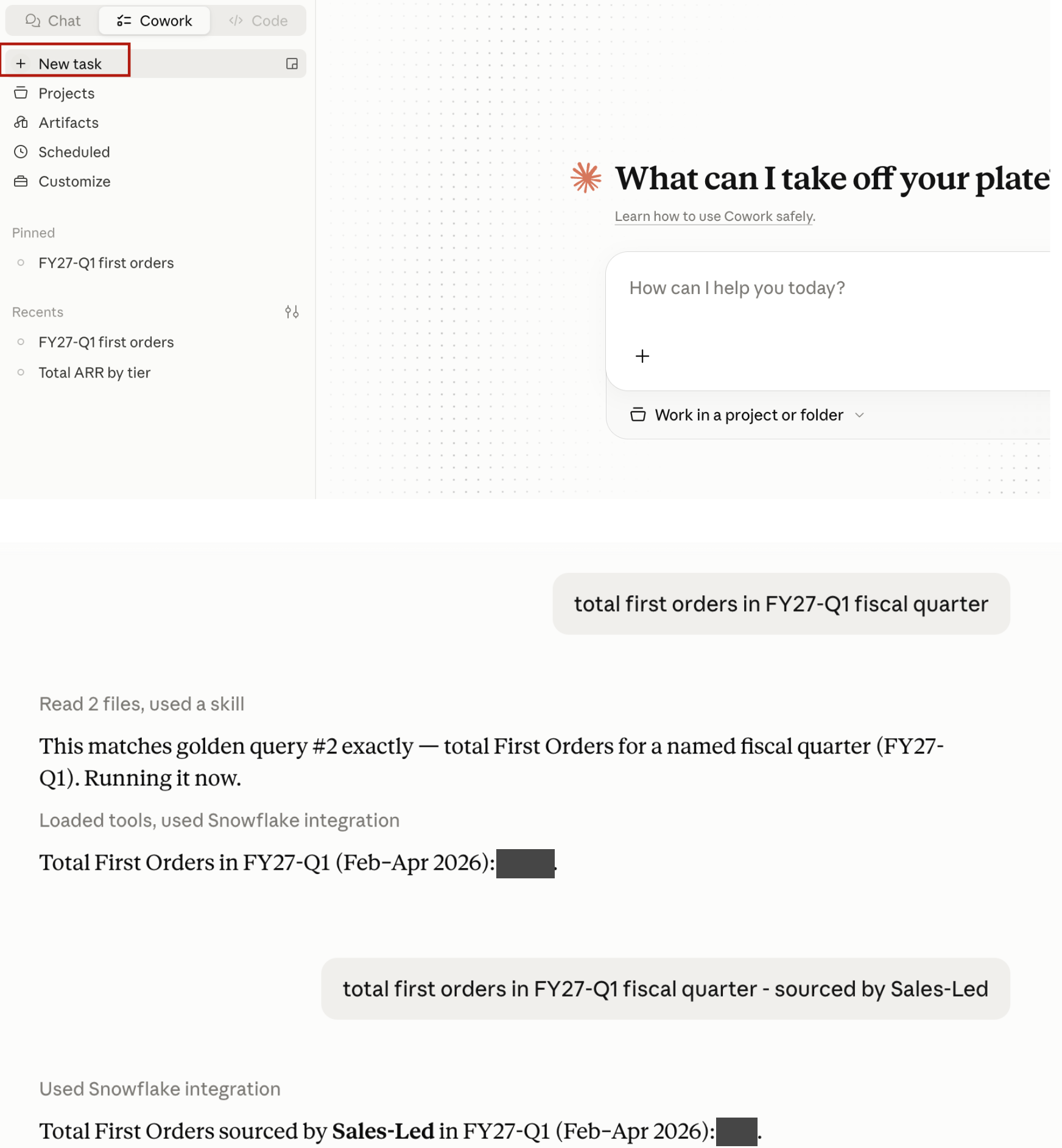
Start a new task and ask a question in one of two ways:
- Type
/snowflake-query-guidancefollowed by your question. - Ask a natural language data question. Claude invokes the skill automatically when the question is about GitLab data.
OpenCode setup
OpenCode prerequisites
- Snowflake access with the Analyst or Analyst Safe role (see Prerequisites).
- A local clone of the analytics repository.
Step 1: Install OpenCode
Install and configure OpenCode by following the OpenCode section of Agent Setup. The internal OpenCode setup guide has the full details.
Step 2: Connect to Snowflake with the Snowflake CLI
OpenCode queries Snowflake through the Snowflake CLI (snow). The analytics repository’s admin/onboarding_script.zsh installs the CLI and writes ~/.snowflake/config.toml. If you ran it during onboarding, the CLI is already set up. Otherwise, follow the Snowflake CLI page and the Snowflake CLI section of Agent Setup.
Confirm the connection works before you continue:
snow connection test
Step 3: Add the snowflake-query-guidance skill
The skill source is marketplace-sync/snowflake-query-guidance/ in the analytics repository. OpenCode does not find it there on its own, so link it into your skills directory.
-
Set up the canonical skills directory,
~/agents/skills, and point OpenCode at it by following thedata-team-agentic-skillsREADME. If you already use the team’s shared skills, this is done. -
Link the skill into that directory. Replace the path with the location of your clone.
ln -sfn ~/repos/analytics/marketplace-sync/snowflake-query-guidance ~/agents/skills/snowflake-query-guidance -
Keep your clone’s
masterup to date. The link points at your local copy, sogit pullis how you get skill updates.
Step 4: Ask a question
Start OpenCode and ask a data question in the session. OpenCode invokes the skill when the question is about GitLab data, or you can type /snowflake-query-guidance followed by your question.
Troubleshooting
| Symptom | Cause | Fix |
|---|---|---|
| The Okta SSO window for Snowflake never completes, or fails, even though the connection flow starts | Claude Desktop is on an older version | Update Claude Desktop to the latest version, then connect again |
| Claude returns SQL and says it cannot run the query because no Snowflake tool is connected | The Snowflake connector is not connected | Use the in chat button to connect to Snowflake, or connect it from Customize, Connectors, and complete the Okta login |
| Claude or OpenCode asks you to log in through Okta again | Your Okta and Snowflake session expired | Complete the Okta login. This is expected and follows your session length |
/snowflake-query-guidance is not listed |
The ETA, Enterprise Data plugin is off | Turn the plugin on in Customize, Plugins |
| The agent says your role lacks access to an object | Your Snowflake role does not have access to that view | Request the access you need through Lumos |
snow connection test fails |
The Snowflake CLI is not installed or ~/.snowflake/config.toml is missing or wrong |
Follow the Snowflake CLI page, then test again |
OpenCode does not use snowflake-query-guidance |
The skill is not linked into your skills directory | Repeat Step 3 and confirm ls -la ~/agents/skills/ shows the link |
Usage guidance
Ask good questions
- Be specific. Name the metric, the period and the breakdown you want, for example “First Orders by motion for FY27-Q2”.
- Ask what data can answer. The Context Layer answers questions about governed data. It does not guess at causes the data does not record.
- Stay within the covered domains. If a question is outside them, the agent says so and lists the domains it covers. See Current domains.
- Expect clarifying questions. When a question has more than one reasonable meaning, the agent asks which one you mean instead of guessing.
- Check the period. Every figure comes with the period it covers. Confirm it matches what you meant.
Note: Quarters are fiscal by default. GitLab’s fiscal year runs from February 1 to January 31, so FY27-Q2 is May to July 2026.
Starter questions
These are examples to get started. Domains not listed here work the same way.
| Domain | Example questions |
|---|---|
| First Orders | How do First Orders this quarter compare with the same quarter last year? |
| First Orders | Are we meeting our First Order target, and which GEOs are behind or ahead of their target? |
| First Orders | What is the Net ARR impact of First Orders this fiscal year compared with last fiscal year? |
| First Orders | Give me a breakdown of First Orders by Sales Led, Sales Assist and Product Led for this fiscal quarter |
| Web Analytics | Break down last month’s sessions by device category |
| Web Analytics | Show me sessions by channel for last month |
| Consumption | How many GitLab Credits did a given subscription consume last month? |
For First Orders, the skill understands sales qualified source and motion, GEO and segment, the number of First Orders booked, First Order Net ARR, and First Order targets.
Next steps
- To understand how the Context Layer works, read the AI Context Layer overview.
- To add a business area, follow the Add a Domain Guide.
e684ccc8)
