Edit your team page entry
Instructions on how to add yourself to the team page, and make edits.
This page focuses on how to edit the handbook. Please see the handbook usage page for how and why we use the handbook, and other docs pages for further reference.
This page is intended to be complementary to Using GitLab at GitLab.
Have your own practical Handbook editing tips? Drop a video below!
Tip Use AI to edit the handbook faster, and learn about Anthropic Claude and GitLab Duo.
For how to add yourself to the team page, see the add yourself to team guide.
For how to format markdown in the handbook, see the markdown style guide, which includes how to embed videos.
A typical workflow to edit the handbook:
Navigate to the handbook page you want to edit. At the bottom, or on the right, click on the URL Edit this page to open the new Web IDE.
Familiarize yourself with the Web IDE:
Shift+Cmd+E)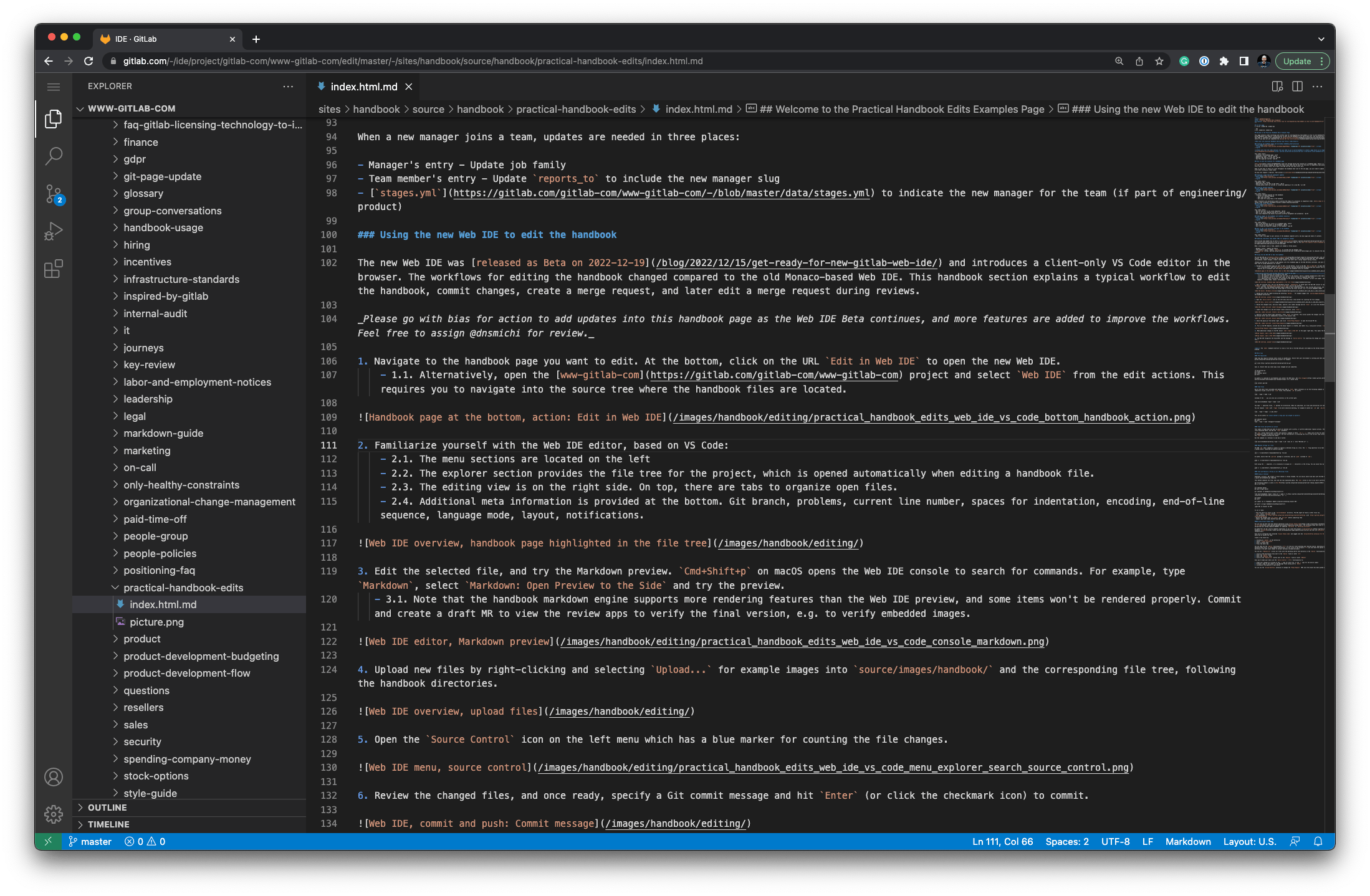
Edit the selected file, and try the Markdown preview. Cmd+Shift+P on macOS opens the Web IDE command palette to search for commands. For example, type Markdown, select Markdown: Open Preview to the Side and try the preview.

Upload new files by right-clicking and selecting Upload... for example images into static/images/handbook/ and the corresponding file tree, following the handbook directories.

Open the Source Control icon on the left menu which has a colored marker for counting the file changes. Tip: Keyboard shortcut Ctrl+Shift+G.
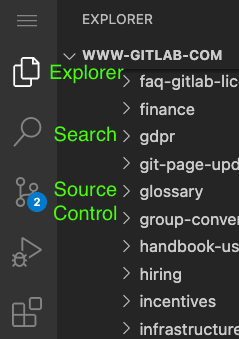
Review the changed files, and once ready, specify a Git commit message. The message should be a brief (less than 120 characters) description of your changes.
Click on the ⋁ on the right side of the Commit and push button, and choose the Create new branch and commit option. Keyboard shortcut: Cmd+Enter.
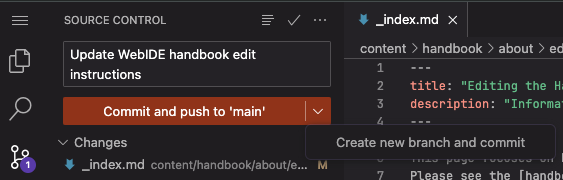
Specify a new Git branch name (optional). Press Enter to continue. This action pushes the changes into the Git repository. The changes are persisted on the GitLab server and are immediately visible in the project view.

Check the pop-up at the bottom right, and click Create Merge Request to open the GitLab MR tab. Tip: The notification bell icon at the bottom brings back the notification, if accidentally dismissed.
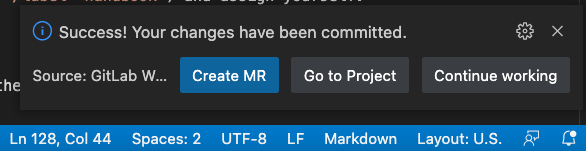
Fill in the MR template, provide why the merge request is created, add labels (optionally using quick actions, /label ~handbook), assign yourself (/assign me), and set the branch to delete when merged. Optionally, use the draft option to prevent merging until ready.

Tip: Practice the keyboard shortcuts for your workflows: After making changes, Control+Shift+G to commit, Cmd+Enter, Cursor to select the branch, Enter, etc.
Note: The Cmd+w keyboard shortcut to close a file tab in the Web IDE gets overridden by the Chrome browser to close the browser tab. This is a known problem, use this shortcut carefully.
If you are editing an existing merge request (MR), there are 2 main differences from creating a new MR: where to open the editor, and where to commit to.
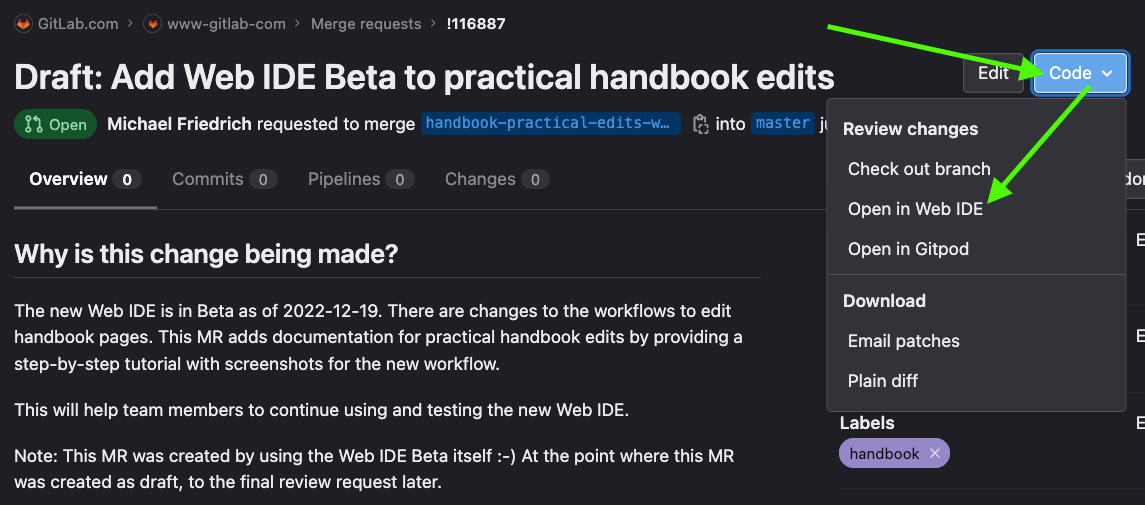
Make additional changes to the MR: Select Code > Open in Web IDE on the upper right menu. This opens the Web IDE again to make changes. All changed files are opened automatically.
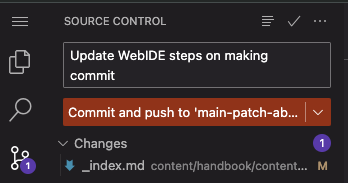
Make changes (see previous section for details), go to the Source Control area, add a commit message, and click on the Commit and push button. If you create a new branch, you will end up with a new MR instead of editing the existing one.
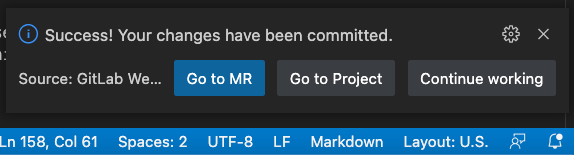
Optional: Follow the pop-up notification to navigate back to the MR. Alternatively, close the editor tab if you did not close the MR tab.
Note: The video shows the old www-gitlab-com project. The editing process, however, is the same.
This video covers:
Edit this page action using the Web IDE, overview walkthrough, editing the handbook, again creating a merge request with the same actions.In these videos, we run through the GitLab Handbook with experts, uncovering how to best use the handbook in our day-to-day work, and learning best-practices for handbook editing along the way. They are meant to be helpful to understand generally how GitLab works, but the instructions cannot be followed exactly since the editor and repository in GitLab has changed.
Additional notes:
If you want to install a local version of the website to test and preview things locally, see the handbook development page for instructions on how to set it up.
To preview your changes, deploy the review app:
Stage:deploy and the pages job.pages job name, click on the “play” button.pages jobs complete, in the pipeline widget on the “Overview” tab of the MR, click on the “View app” button..html ending, so if your page is content/handbook/path/to/page.md, the URL will be review/app/public/handbook/path/to/path.html.If you need the review app deployed after every change on a MR, you can add the ~"deploy-review-app-always" label to always trigger the job, including on MR creation.
For more information about how the review apps are configuration for the handbook projects, please see the Handbook Pages Deployment.
The site uses the concept of page bundles, sections, and leaf pages. A section can have multiple leaf pages, which requires a _index.md for the section. A page bundle is a single page with a group of images, which can be an index.md.
In general, Handbook URLs should describe their content and be as clean and easy to remember as possible.
Directories (folders) and pages should use lowercase a-z, hyphen -, and underscore _.
While Git and Hugo allow any UTF-8 character to be used in the file path, using other characters (such as a space) can cause issues with the pipeline, and thus, disallowed.
Section:
section-dir/
|- _index.md
|- leaf-page1.md
|- leaf-page2.md
Page bundle:
page-name/
|- index.md
|- image1.png
|- image2.png
Section with a page bundle:
section-dir/
|- _index.md
|- leaf-page1.md
|- leaf-page2/
|  |- index.md
|  |- image.pmg
|- leaf-page3.md
If you delete, rename, or move a page, you should:
On the right side of the page, there is a list “Maintainers”.
The list is generated from the CODEOWNERS file in the relevant repository, such as in the handbook repository:
Only specific users are listed. Members of a group are not listed.
The list is generated based on the most specific path:
Changes to the .gitlab/CODEOWNERS file require approval.
Review the bot comment for instructions on how to get the appropriate approval.
When trying to edit content, you may encounter content that is “built” using shortcodes and data files.
Shortcodes look similar to {{ % performance-indicators "ux_department" % }}.
When you encounter content in a shortcode and want to edit it:
performance-indicators.https://gitlab.com/gitlab-com/www-gitlab-com/-/tree/master/data/performance_indicators for the ux_department file.#handbook to get help, and make a MR to add it.If you recently created a merge request that was labeled as a Community contribution, you can fix this mislabeling issue going forward by updating the GitLab username in your personal entry in the team member directory to match the GitLab account you use for work.
Use the team page editing instructions to find your team page entry file, and update the gitlab attribute (typically found on line 10) to be an exact match for the GitLab.com username you use for work.
When clicking on Edit this page in the upper right corner on a handbook page in your browser, you might get a 404 error in the GitLab Web IDE.
As a team member, this problem can be related to an expired SAML session for your GitLab.com profile. In order to mitigate and solve the problem, click on View page source to trigger the SAML authentication with Okta again.
Alternatively, navigate into our GitLab.com profile into your To-Do list, or try to open a confidential issue, to trigger the authentication.
It can also be browser related: Try clearing the cache, open an incognito window (on macOS: cmd shift n), or use a different browser to test.
If a new page is created as part of a merge request, but the page is not showing up on the site, check the file name.
The most common issue is using index.md instead of _index.md in a folder that has other pages.
The other pages will not display.
See pages and folder structure for more information.
If you added new images and they are not loading properly in your review app, please review the Images section of the markdown guide.
To see why your pipeline is failing, there are two main places to look:
Error.In the job log, error messages typically provide you:
For example: Error: error building site: assemble: "/builds/gitlab-com/content-sites/handbook/content/handbook/security/security-assurance/field-security/trust_center_guide.md:1:2": closing tag for shortcode 'details' does not match start tag
content/handbook/security/security-assurance/field-security/trust_center_guide.mdTo fix markdown errors, review the message. Alternatively, review the relevant section in the markdown style guide.
For all other errors, the error message should provide the information necessary to fix it.
See the below sections for more details on how to resolves specific types of issues.
If the problem was on the main branch, you may need to rebase.
If you’re unsure, you can reach out for help.
There is a linter (Hugolint) that validates links and anchors across the handbook. If your change introduces new broken links, then the pipeline job will fail. Follow the instructions in the previous failing pipelines section for how to find the list of errors.
There are two main reasons it will fail:
Here’s an example of a failed hugolint job error message when viewed in the job log:
Newly broken (only in "linkcheck.json", 3 issues):
❌ [content/handbook/security/product-security/_index.md:43]: <major> Link destination "architecture/" does not exist
❌ [content/handbook/security/product-security/security-architecture/_index.md:269]: <major> Link destination "/handbook/business-technology/tech-stack/#panther" does not exist
❌ [content/handbook/security/product-security/security-architecture/zero-trust.md:45]: <major> Link destination "/handbook/security/corporate/systems/#laptop-or-desktop-system-configuration" does not exist
content/handbook/security/product-security/_index.md, line number: 43.)architecture/ is the broken link destination.)#panther):
hugolint in the relevant configuration file.Pipelines for community contributions to the handbook from private forks will fail. Contributors should use a public fork, or preferably the community fork.
MR pipelines should catch almost all errors before they are merged into the relevant repository.
The handbook projects also pull data from www-gitlab-com yml files.
If the default branch main (for public and internal handbook) or master (for www-gitlab-com)
is “broken” and pipelines are failing for everyone, the root issue is most likely a data file error.
site.Data.public., then it’s a data file issue.Consider this example error:
Error: error building site: failed to render shortcode: "/builds/gitlab-com/content-sites/handbook/content/handbook/marketing/product-and-technical-marketing/technical-writing/_index.md:126:1": failed to render shortcode "tech-writing": failed to process shortcode: "/builds/gitlab-com/content-sites/handbook/layouts/shortcodes/tech-writing.html:16:28": execute of template failed: template: shortcodes/tech-writing.html:16:28: executing "shortcodes/tech-writing.html" at <ref page (printf "/handbook/product/categories#%s-section" $section)>: error calling ref: parse "/handbook/product/categories#%!s(<nil>)-section": invalid URL escape "%!s"
Following the error trace, notice that the last error with a full path and line number is:
failed to process shortcode: "/builds/gitlab-com/content-sites/handbook/layouts/shortcodes/tech-writing.html:16:28".
Looking at the tech-writing shortcode,
the issue is an unexpected value in printf "/handbook/product/categories#%s-section" $section,
which matches the last part of the error message.
From there, line 11 of the tech-writing shortcode
tells us that the data is from site.Data.public.stages.stages "section".
If you have a local build of the site, you can find all the data files in the data/public folder.
The relevant file (usually a yml file) should tell you at the top where to find the original.
If you do not have a local build, you can still likely find it in the www-gitlab-com data folder.
Based on the code, you can figure out the filename. site.Data.public.stages.stages means it’s
in data/public and the file is stages.yml.
The last parts .stages "section" means it’s inside of stages: and it’s pulling data from
each section: line.
You can check the most recent changes to the file, and/or compare it to when main started failing.
In this case, an empty section: line
was the issue.
The quick and easy fix is to add text to the empty section: line, merge it, and run a new pipeline
in the public handbook project.
In this case, the handbook code was made more robust.
If you have prettier set up in VS Code and it is formatting the .md files when they are not supposed to, check if you have Prettier set to be your default formatter with "editor.defaultFormatter": "esbenp.prettier-vscode" in your user settings.
Additionally, consider using the Glob Pattern in the extension settings to specify which files to prettify automatically.
For additional tips, such as how to replace strings in files, refer to the practical handbook edits examples.
If you run into trouble editing the GitLab Handbook, help is available.
Team members, referred to as MR Buddies, are available to help you create a merge request or debug any problems you might run into while updating the GitLab Handbook. Some common questions are covered in the videos in the MR Buddies playlist. Post your request with a link in the #mr-buddies Slack channel.
For general questions about the handbook, post in the handbook Slack channel.
For more serious problems, especially ones that are time sensitive or prohibiting access to important information, there is an escalation process to reach out to team members who are able to help resolve the problem.
4469685d)
